Asset Collections
Organize your assets into collections for easier browsing, filtering, and team collaboration
What Are Collections?
Collections are folders that group related assets together. They help you stay organized as your asset library grows -- especially when working on multiple campaigns, games, or ad networks at once.
Common ways to use collections:
- By type -- "Textures", "Audio Effects", "UI Sprites"
- By campaign -- "Summer 2026 Launch", "Holiday Promos"
- By game -- "Puzzle Quest Assets", "Runner Game Assets"
- By ad network -- "Meta Creatives", "Unity Ads Backgrounds"
Creating a Collection
- Navigate to the Assets section from the sidebar
- Click New Collection
- Fill in the details:
- Name (required) -- A descriptive label
- Description (optional) -- Context about the collection
- Click Create
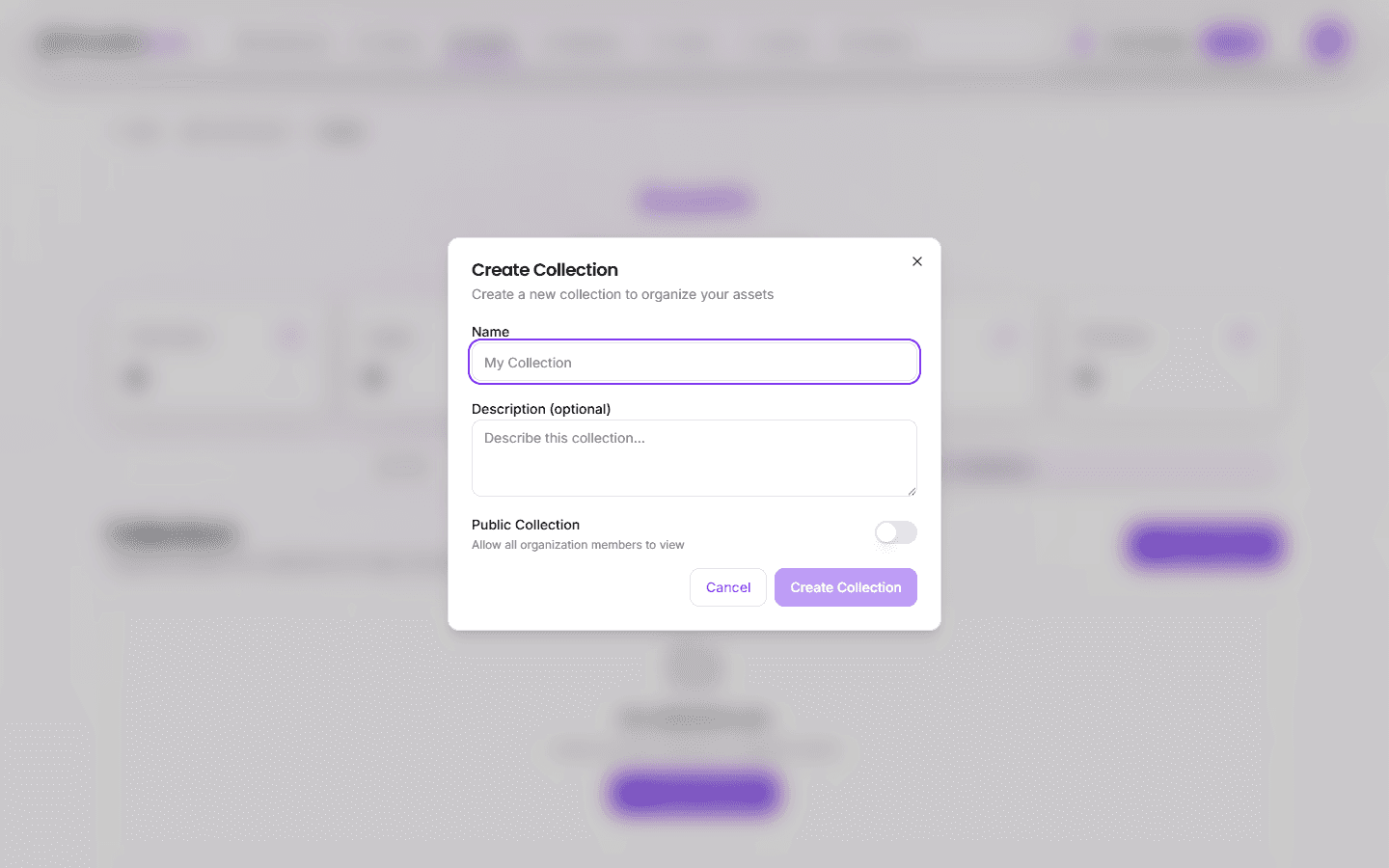
Collections display:
- Asset count badge -- Number of assets in the collection
- Visibility icon -- Globe (public) or Lock (private)
- Creator attribution -- Name of the user who created the collection
- Created date -- When the collection was created
Tip: Use clear, descriptive names. Your team will thank you when the library has hundreds of assets.
Adding Assets to a Collection
From the Asset Library
- Browse or search for the assets you want to organize
- Select one or more assets using the checkboxes
- Click Add to Collection from the action bar
- Choose the target collection
- Click Confirm
An asset can belong to multiple collections. Adding an asset to a new collection does not remove it from any existing one.
Managing Collections
Editing a Collection
- Find the collection card
- Click the three-dot menu (⋮) in the top-right corner
- Select Edit
- Update name, description, or visibility toggle
- Click Save
Viewing Modes
Switch between display modes using the view toggle:
- Grid view -- Visual card layout with thumbnails
- List view -- Compact row layout for quick scanning
Keyboard navigation is supported for accessibility.
Deleting a Collection
- Find the collection card
- Click the three-dot menu (⋮)
- Select Delete
- Confirm the deletion
Deleting a collection does not delete the assets inside it. They remain in the global asset library and any other collections they belong to.
Filtering and Searching
Search
The search bar at the top of the asset library lets you search by:
- File name -- Partial or exact match
- Tags -- Keywords assigned to assets
- File type -- Filter by images, audio, or data
Best Practices
- Create collections early -- Set up your structure before uploading hundreds of files
- Use consistent naming -- Agree on naming conventions with your team
- Keep collections focused -- A collection with 500 mixed files is not more useful than no collection at all
- Tag assets -- Tags complement collections and make search more powerful
Next Steps
- Upload assets to start building your library
- Manage asset metadata and lifecycle