Asset Management
Edit metadata, replace files, delete assets, and track usage across your games
Overview
Once assets are uploaded, PlayableLabs provides tools to keep your library organized and up to date. You can edit metadata, replace files without breaking references, delete unused assets, and track where each asset is used.
Folder Navigation
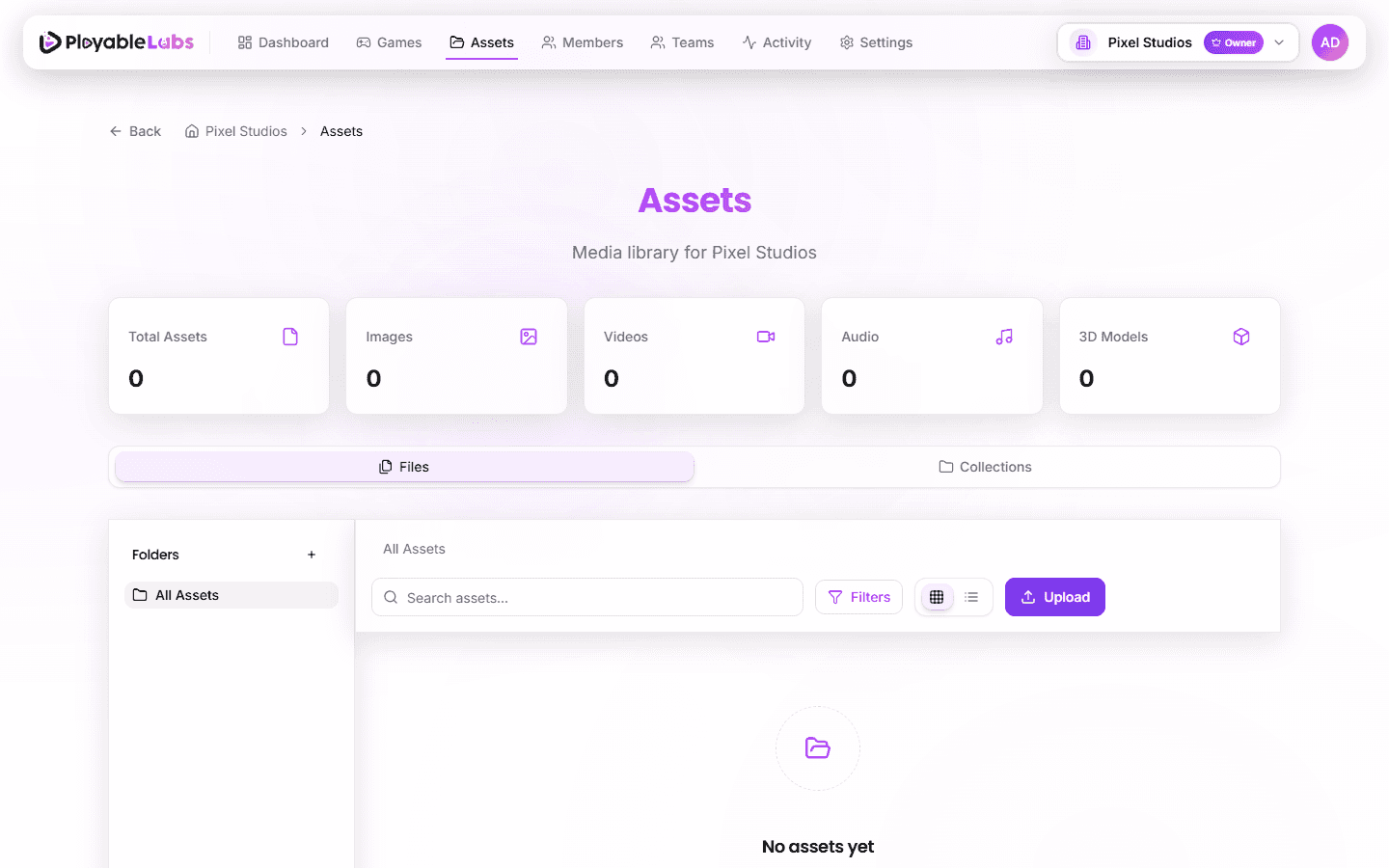
Navigate your asset library using folder breadcrumbs at the top of the asset view:
- All Assets → Root folder
- All Assets > Backgrounds > Seasonal → Nested folder path
Click any breadcrumb to jump to that folder. Folders help organize large asset libraries by game, type, or campaign.
Viewing Asset Details
Click any asset in the library to open its detail modal. You will see:
- Preview -- Visual, audio, video, or 3D model preview
- 3D Models -- Interactive viewer with drag to rotate, scroll to zoom, right-drag to pan
- File info -- File size, MIME type
- Metadata -- Name, folder location, tags, description (if set)
- Timestamps -- Created and updated dates (relative time format)
Available Actions
From the detail modal:
- Download -- Save asset to your device
- Edit -- Update metadata (name, tags, description)
- Delete -- Remove asset permanently
Editing Metadata
- Open the asset detail panel
- Click Edit (or click directly on the name/description fields)
- Update any of the following:
- Name -- A descriptive label for the asset
- Description -- Optional context about the file
- Tags -- Keywords for search and filtering
- Click Save
Metadata changes take effect immediately and are reflected everywhere the asset appears.
Tip: Use tags consistently across your team. For example, always use "background" instead of mixing "bg", "background", and "backdrop".
Quick Actions
Copy URL
Right-click any asset in the grid view to access the context menu and select Copy URL. The CDN/storage URL is copied to your clipboard.
Bulk Actions
Select multiple assets using checkboxes, then click Delete from the action bar to remove them all at once.
Deleting Assets
Single Delete
- Open the asset detail panel
- Click Delete
- A confirmation dialog will ask you to confirm the deletion
Bulk Delete
- Select multiple assets using the checkboxes in the asset library
- Click Delete from the action bar
- Confirm the deletion
Warning: Deleting an asset that is actively used in a game version or variant will break those references.
Reusing Assets Across Games
Assets belong to your organization, not to a single game. This means you can use the same asset in multiple games, versions, and variants without uploading it again.
To reuse an asset:
- Open the target game's Assets tab or the customization editor
- Browse the organization's asset library
- Select the asset you want to use
This avoids duplicating files and keeps your storage usage efficient.
Storage and Delivery
- Storage: All assets are stored in Cloudflare R2, scoped by organization ID
- CDN: Assets are served through a CDN for fast loading in the preview editor
- Export: During export, assets referenced in parameters are automatically converted to base64 and embedded in the single-file HTML output
Next Steps
- Upload new assets to expand your library
- Organize assets into collections for better structure