Localization
Manage multi-language content for playable ads with translation management and locale-specific parameters
Overview
PlayableLabs supports comprehensive localization for playable ads, including text, audio, and image localization. You can translate content manually or use AI batch translation to localize multiple parameters at once.
Locales vs Localization: These are two separate concepts in PlayableLabs:
- Locale Configuration (Settings > Locales) — Adding/removing languages, setting defaults, enabling/disabling locales for your organization
- Translation Management (Settings > Localization OR variant Localization tab) — Managing the actual content translations, AI batch translation, and source tracking
Configure your locales first at Organization Settings > Locales, then manage translations here.
How Localization Works
Localizable Parameter Types
The localization system supports three types of content:
- TEXT parameters -- Text strings, labels, and descriptions
- AUDIO parameters -- Audio files for different languages/regions
- TEXTURE parameters -- Images that may contain text or region-specific content
Localizable parameters are marked with badges showing their source (DIRECT, INHERITED, or AUTO_TRANSLATED).
Locale Resolution
When a playable ad is displayed, the system resolves parameter values in this order:
- Locale-specific value for the selected locale (if set)
- Default locale value (fallback)
- Base parameter value (English key)
This ensures the playable ad always has content to display, even if a translation is missing.
Managing Translations
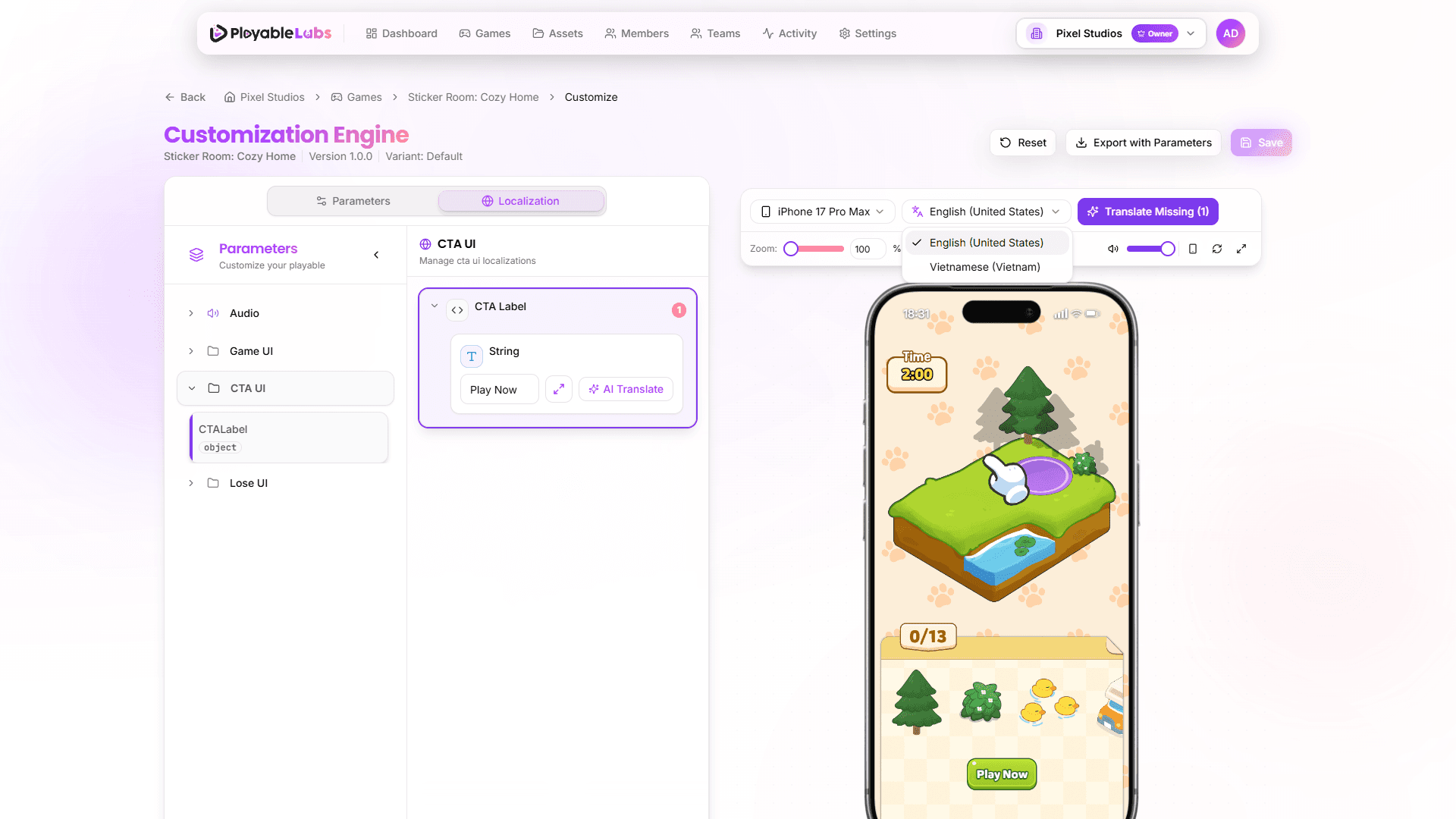
Selecting a Locale
- Open a variant and navigate to the Customize tab
- Use the locale selector in the editor header to switch between languages
- Localizable parameters update to show values for the selected locale
- Non-localizable parameters remain unchanged
Adding a New Locale
- Navigate to Settings > Locales in your organization
- Click Add Locale
- Select a language from the available list
- Set as default locale if needed
- The new locale becomes available across all games
Editing Translations
The localization panel provides a dedicated interface for managing translations:
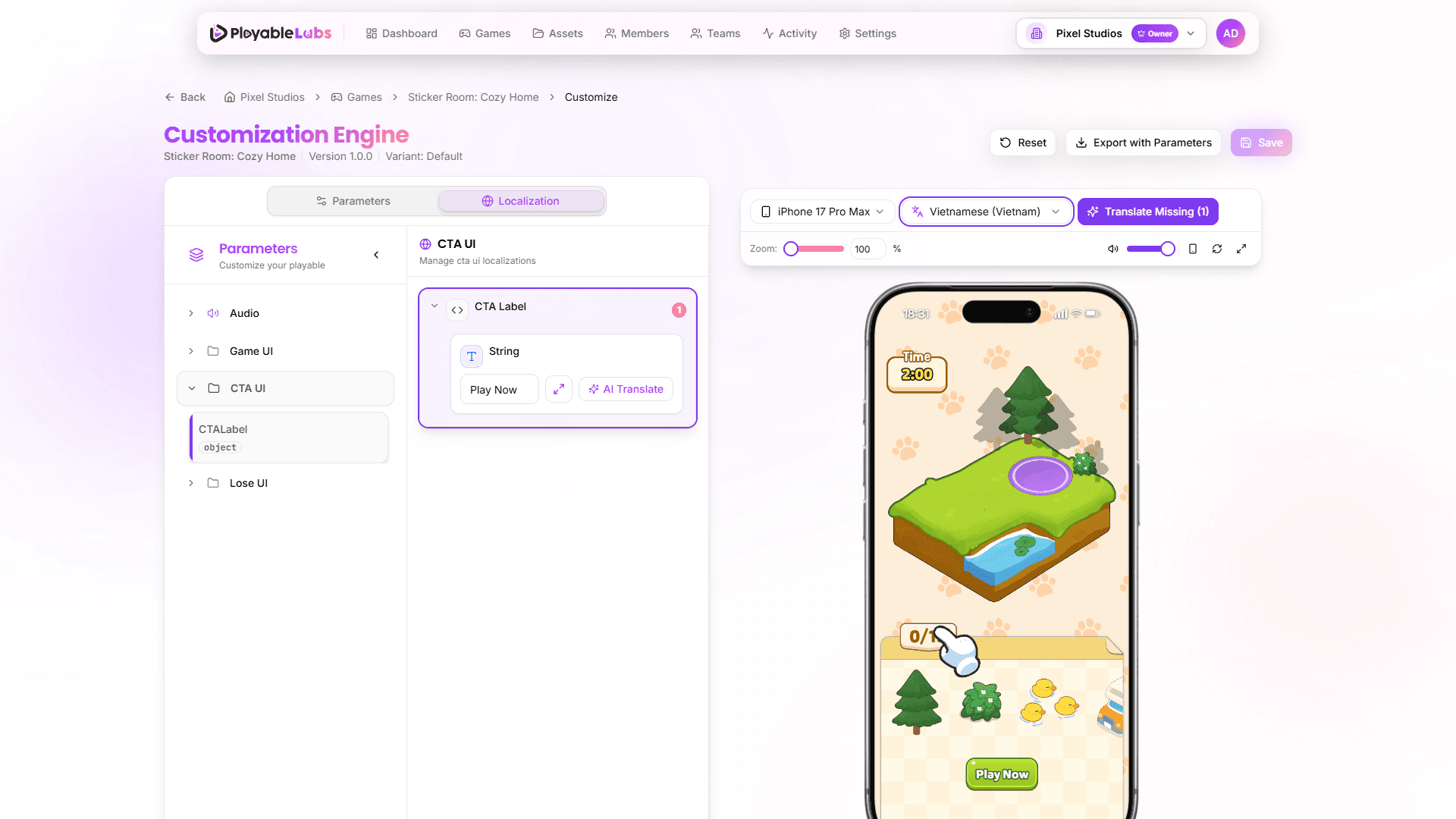
- Open a variant and navigate to the Localization tab
- Select the target locale from the locale selector
- Use tab filters to show TEXT, AUDIO, or TEXTURE parameters
- Apply filter modes: all, translated, untranslated, or inherited
- Edit values directly in the localization panel
AI Batch Translation
Translate multiple text parameters at once using AI:
- In the Localization tab, select your target locale
- Click the AI Batch Translate button (appears when untranslated items exist)
- Choose a source locale (or "auto" for automatic detection)
- Select translation strategy:
- SEQUENTIAL -- Slower but more careful (30 seconds)
- CHUNKED_PARALLEL -- Faster for large batches (10 seconds)
- Optionally add context hints to improve translation quality
- Click Translate
- Watch real-time progress updates
- Review translated parameters with AI badges
All AI-translated parameters are marked with a purple "AI" badge for visibility.
Source Tracking
Every localization shows its source:
- DIRECT -- Set directly at this level
- INHERITED -- Inherited from parent level (game/version)
- AUTO_TRANSLATED -- Translated by AI batch translation
Source badges appear next to each localized value for full transparency.
Asset Localization
Beyond text, you can localize audio and images:
Audio Localization
Upload different audio files for each locale:
- Voice-overs in different languages
- Region-specific sound effects
- Localized music tracks
Audio parameters show the locale selector and upload controls in the localization panel.
Image Localization
Some images contain text or region-specific content that needs localization:
- Screenshots with UI text
- Banners with marketing copy
- Icons with embedded text
Upload different image assets for each locale through the TEXTURE tab in the localization panel.
Hierarchical Overrides with Localization
Localization works together with the parameter hierarchy:
Variant (locale) > Variant (default) > Version > Game > OrganizationA locale-specific value on a variant takes the highest priority. If no locale value is set on the variant, the system falls back through the hierarchy using the default locale.
Example
| Level | Default (en) | Spanish (es) |
|---|---|---|
| Game | "Play Now" | -- |
| Version | -- | -- |
| Variant | -- | "Jugar Ahora" |
| Resolved | "Play Now" | "Jugar Ahora" |
The Spanish variant displays "Jugar Ahora" (set at variant level), while English falls back to the game-level "Play Now".
Best Practices
- Set default locale first -- Complete the default language before adding translations
- Use descriptive parameter keys -- Keys like
ctaButtonTextare easier to translate thantext_1 - Review coverage regularly -- Check the localization coverage dashboard before exporting
- Test each locale in preview -- Switch locales in the preview to verify translations look correct in context
- Handle text length -- Some languages produce longer text; verify your layout accommodates translations
API Integration
When fetching parameters via the API, specify a locale query parameter to receive localized values:
GET /api/customization/variants/{variantId}/parameters?locale=esThe response includes both the base value and the localizedValue for the requested locale, along with coverage statistics.
Next Steps
- Parameter Editor -- Edit parameters and manage overrides
- Preview System -- Preview locale-specific content in real-time