Organization Settings
Configure your organization profile, branding, slug, and workspace preferences in PlayableLabs
Overview
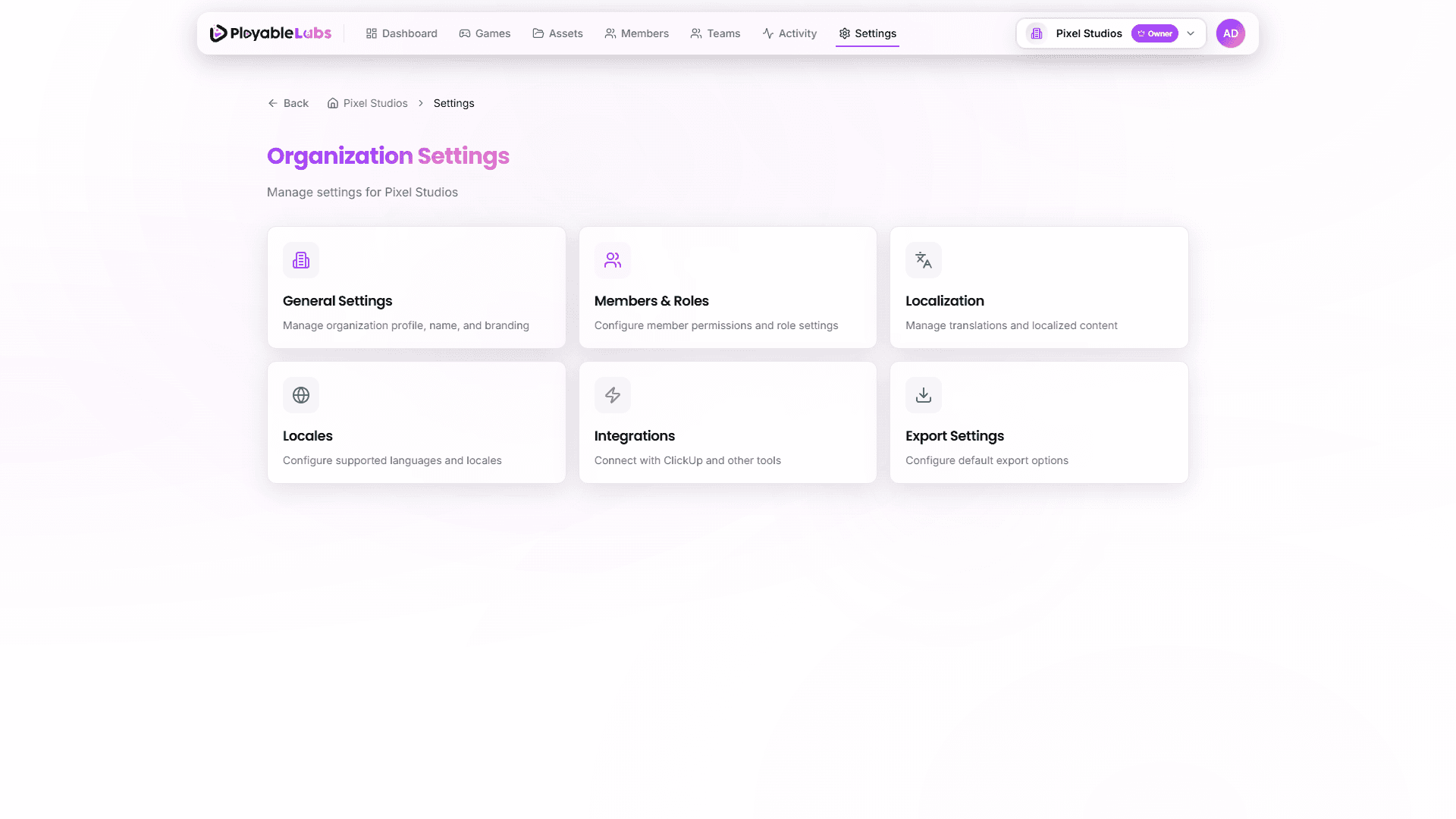
Organization settings are accessible from your organization's Settings page. The settings hub displays a 6-card grid layout, each card linking to a specific configuration area.
Settings Hub
The settings page presents six sections as interactive cards:
| Card | Icon | Description |
|---|---|---|
| General Settings | Building icon | Organization profile, name, description, and branding |
| Members & Roles | Users icon | Manage team members and permission roles |
| Localization | Globe icon | Content translations and AI batch translation |
| Locales | Languages icon | Language/locale configuration and defaults |
| Integrations | Plug icon | ClickUp, Slack, Jira, and webhook connections |
| Export Settings | Download icon | Default export options, networks, and file naming |
Click any card to navigate to its dedicated settings page.
General Settings
Access general organization settings from Settings > General.
Organization Profile
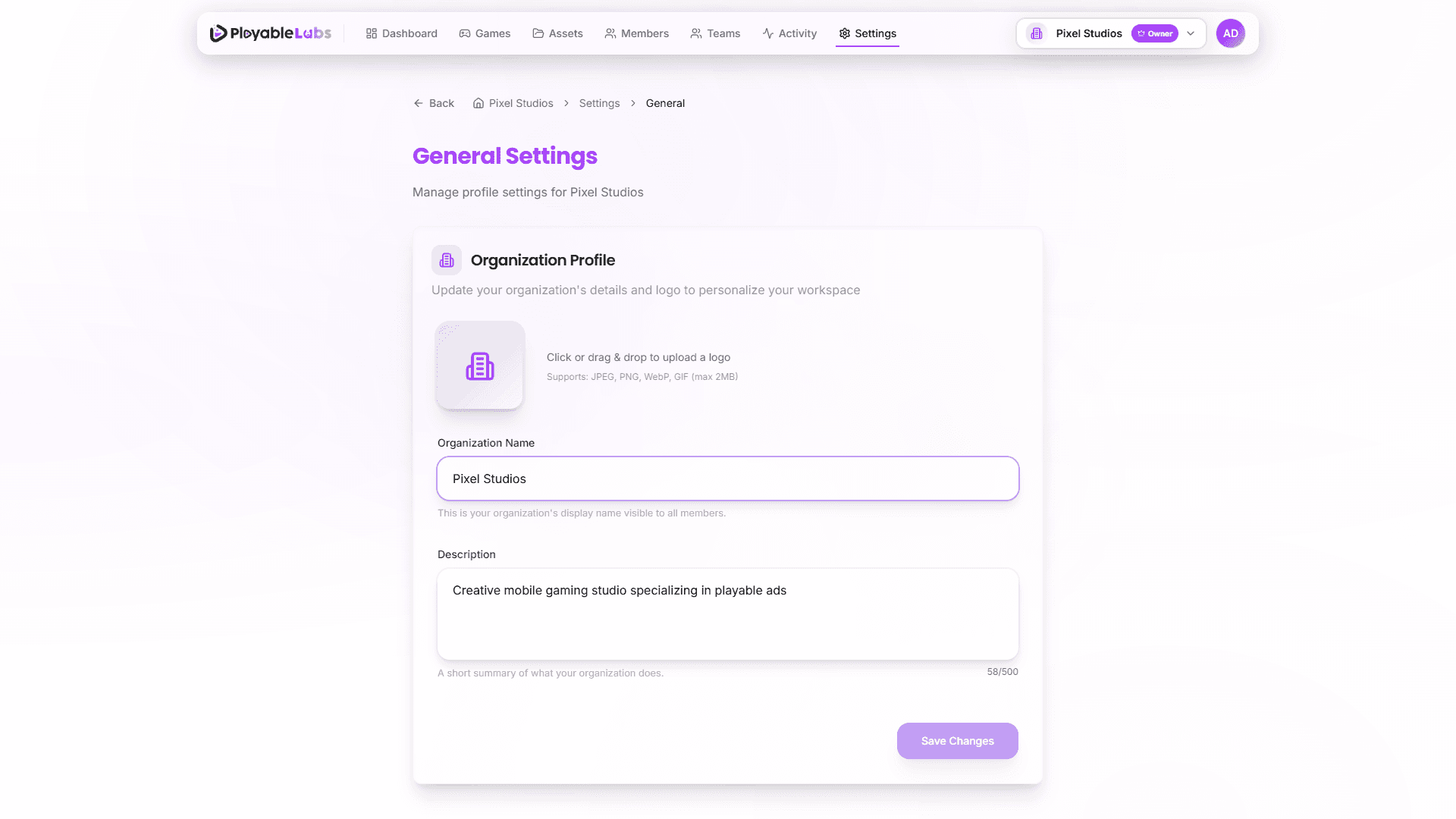
The profile form contains the core organization information:
- Organization Name — Appears in the header, invitations, and exported files (max 100 characters)
- Description — A brief description of your organization's purpose (max 500 characters, optional)
- Logo Upload — Upload a square logo (PNG, JPG, WebP, or GIF, max 2MB) with drag & drop support
The organization slug is auto-generated from the name and cannot be edited from the UI. API tokens are tied to the organization ID, not the slug.
Members & Roles
Manage your team from Settings > Members & Roles:
- View all organization members with their roles
- Invite new members via email
- Assign and update roles (Owner, Admin, Manager, Member, Viewer)
- Remove members from the organization
For detailed role permissions, see Roles & Permissions.
Localization
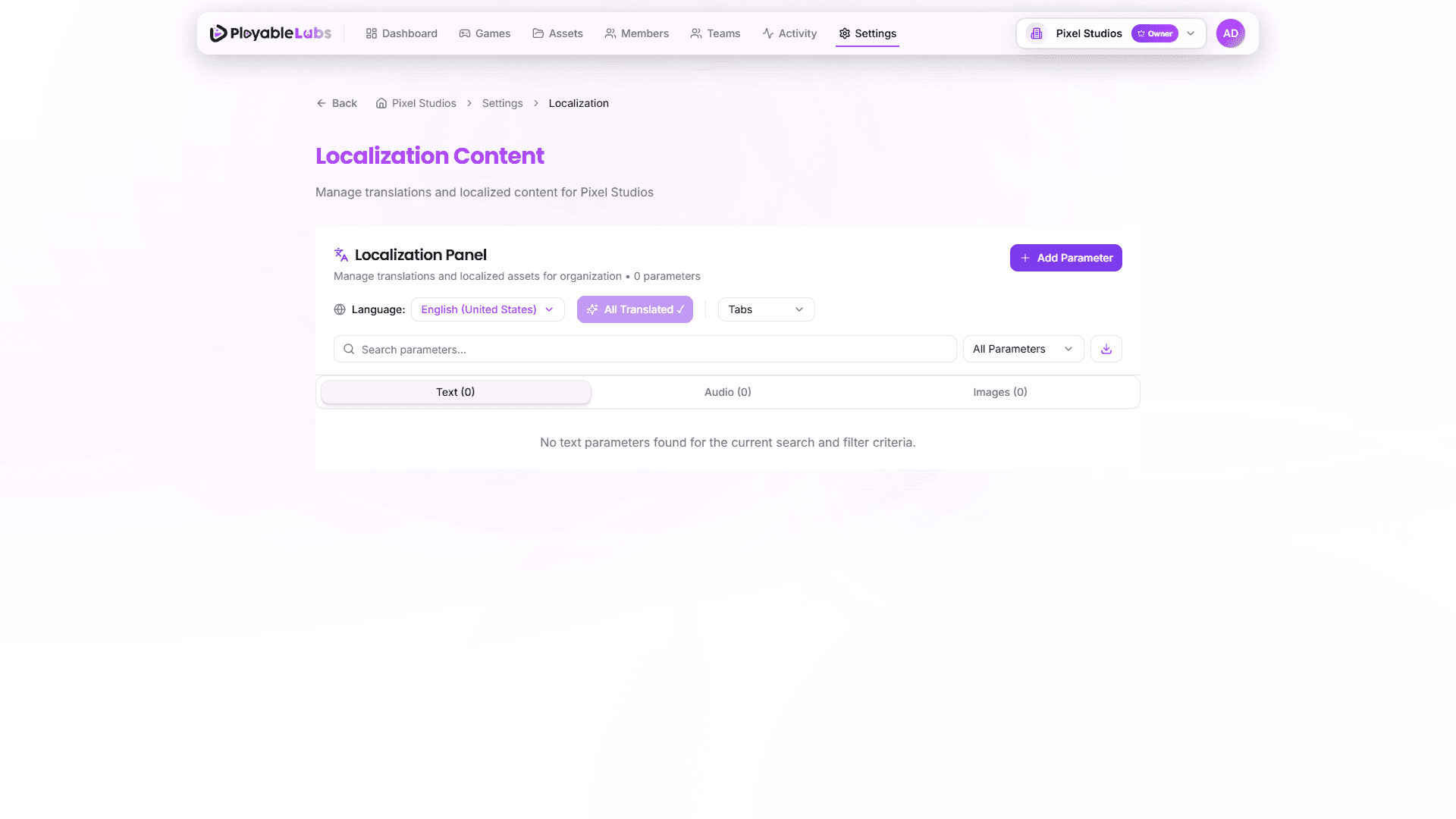
Configure translation settings at Settings > Localization:
- Default translation behavior
- AI translation preferences
- Fallback locale rules
- Batch translation for content across all variants
For detailed translation management, see Localization guide.
Locales
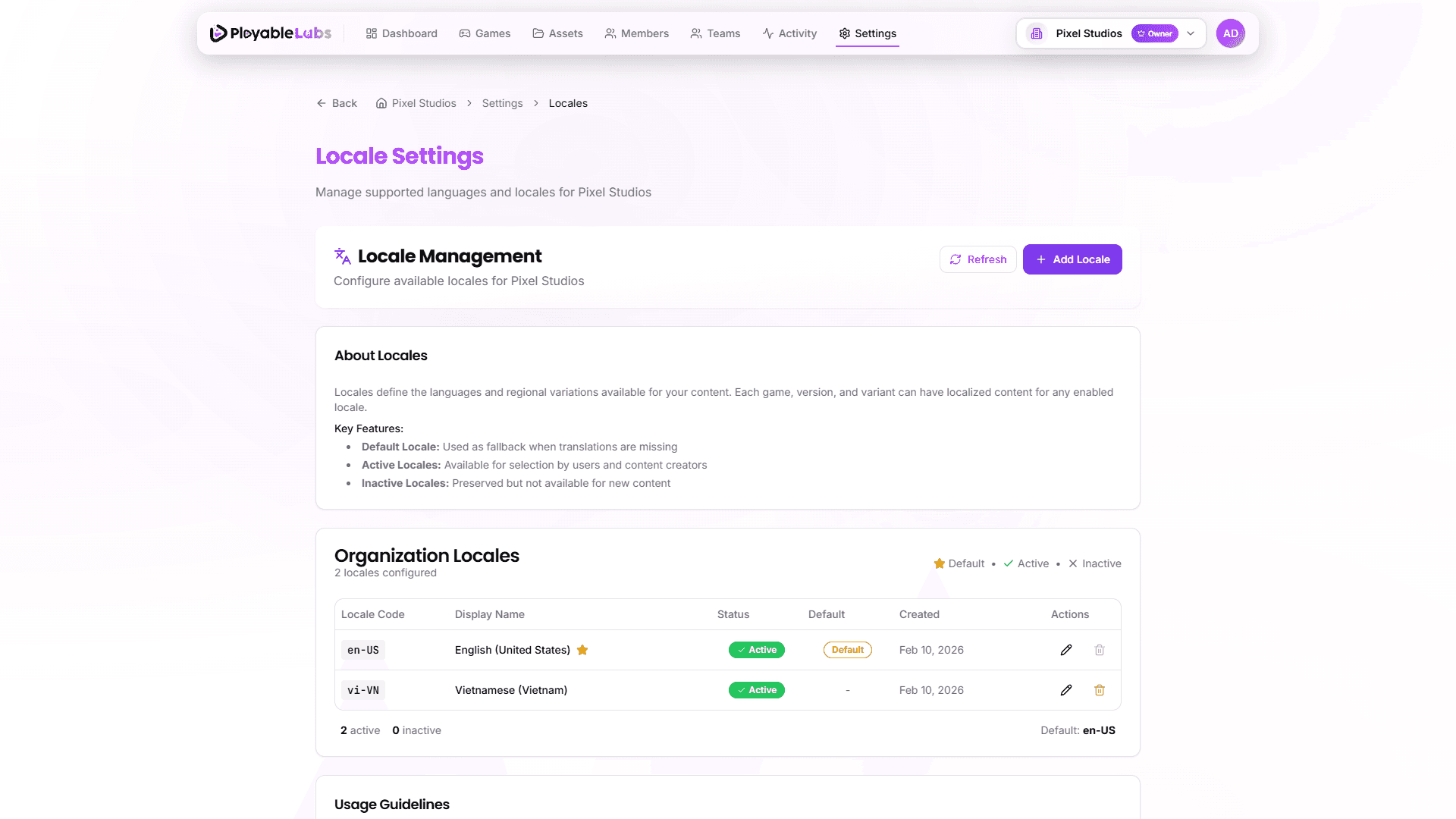
Manage available locales for your organization at Settings > Locales:
- View all configured locales with their status (active/inactive)
- See which locale is set as default
- Add new locales from the supported language list
- Enable/disable locales as needed
- Set a different default locale
Locales vs Localization: Locales (Settings > Locales) manages which languages are available. Localization (Settings > Localization) manages the actual content translations. Configure your locales first, then manage translations.
Integrations
Connect external tools and services at Settings > Integrations:
- ClickUp task management integration
- Webhook configurations
- Third-party service connections
For details, see Integrations guide.
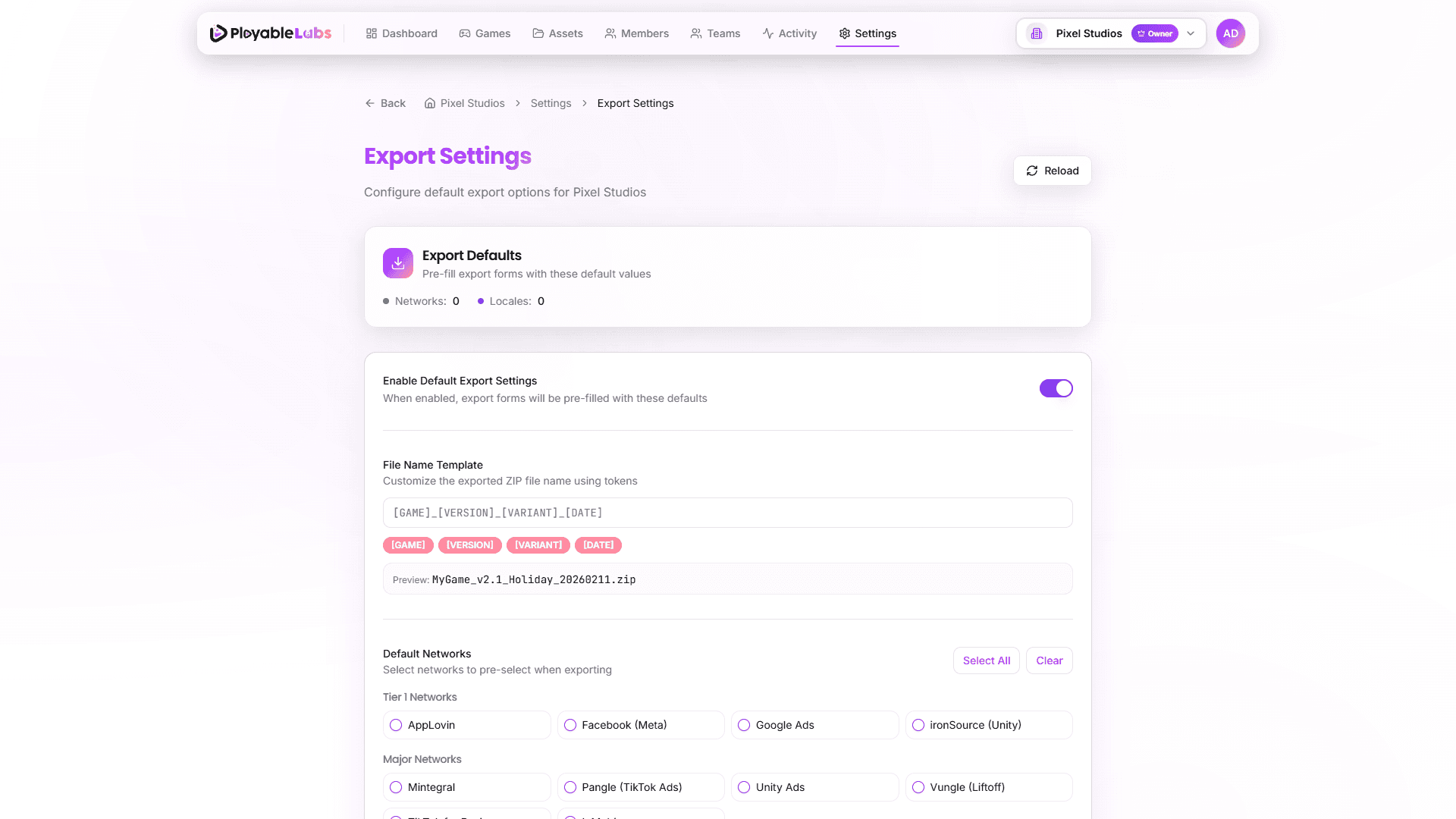
Export Settings
Manage network-specific export configurations at Settings > Export:
- Configure default export templates
- Select target networks for export
- File Name Template -- Customize the naming pattern for exported files
Next Steps
- Set up integrations to connect external tools
- Create API tokens for programmatic access
- Manage locales for multi-language support