Team Members
Invite members to your organization, accept invitations, and manage your team roster in PlayableLabs
Overview
PlayableLabs supports multi-organization collaboration. Each user can belong to multiple organizations, and every organization maintains its own team roster with role-based access control (RBAC).
All team member actions are tracked in the activity log for auditability.
Inviting Members
Only Owners, Admins, and Managers can invite new members.
- Navigate to Members in the sidebar
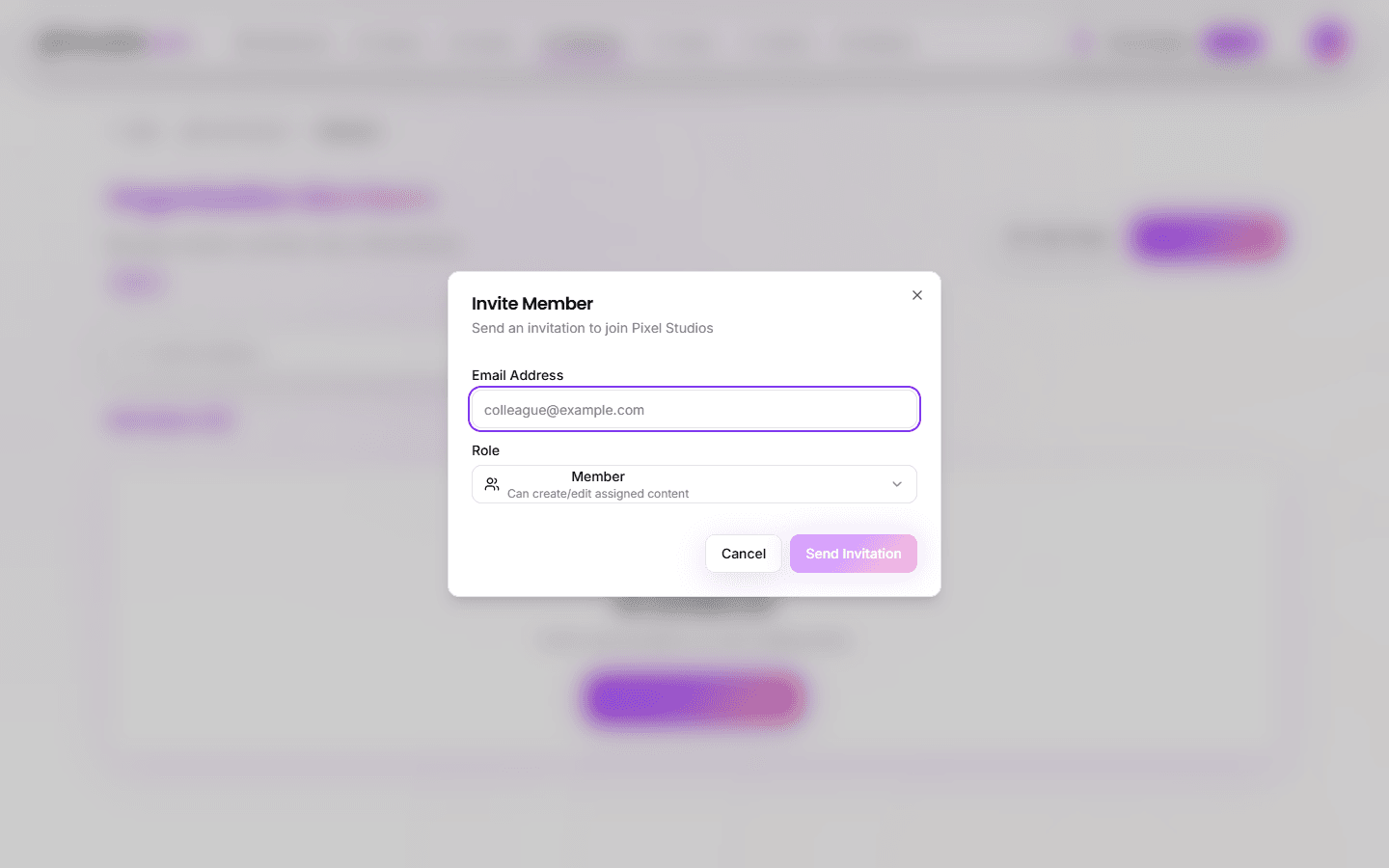
- Click Invite Member
- Enter the recipient's email address
- Select a role for the new member:
- Admin (Owner only) -- Full system access + team management
- Manager -- Create content + manage team members
- Member -- Create and edit content
- Viewer -- Read-only access
Each role option in the dropdown displays an inline description of permissions. Only Owners can invite Admins.
- Click Send Invitation
Tip: You can invite people who don't have a PlayableLabs account yet. They will be prompted to create one when accepting the invitation.
Invitation Limits
- Each email address can only have one pending invitation per organization
- Invitations expire after 7 days if not accepted
- You can resend an expired invitation from the pending invitations list
Accepting an Invitation
When you receive an invitation:
- Open the invitation email and click Accept Invite
- Sign in or create a PlayableLabs account if you don't have one
- You will be added to the organization with the assigned role
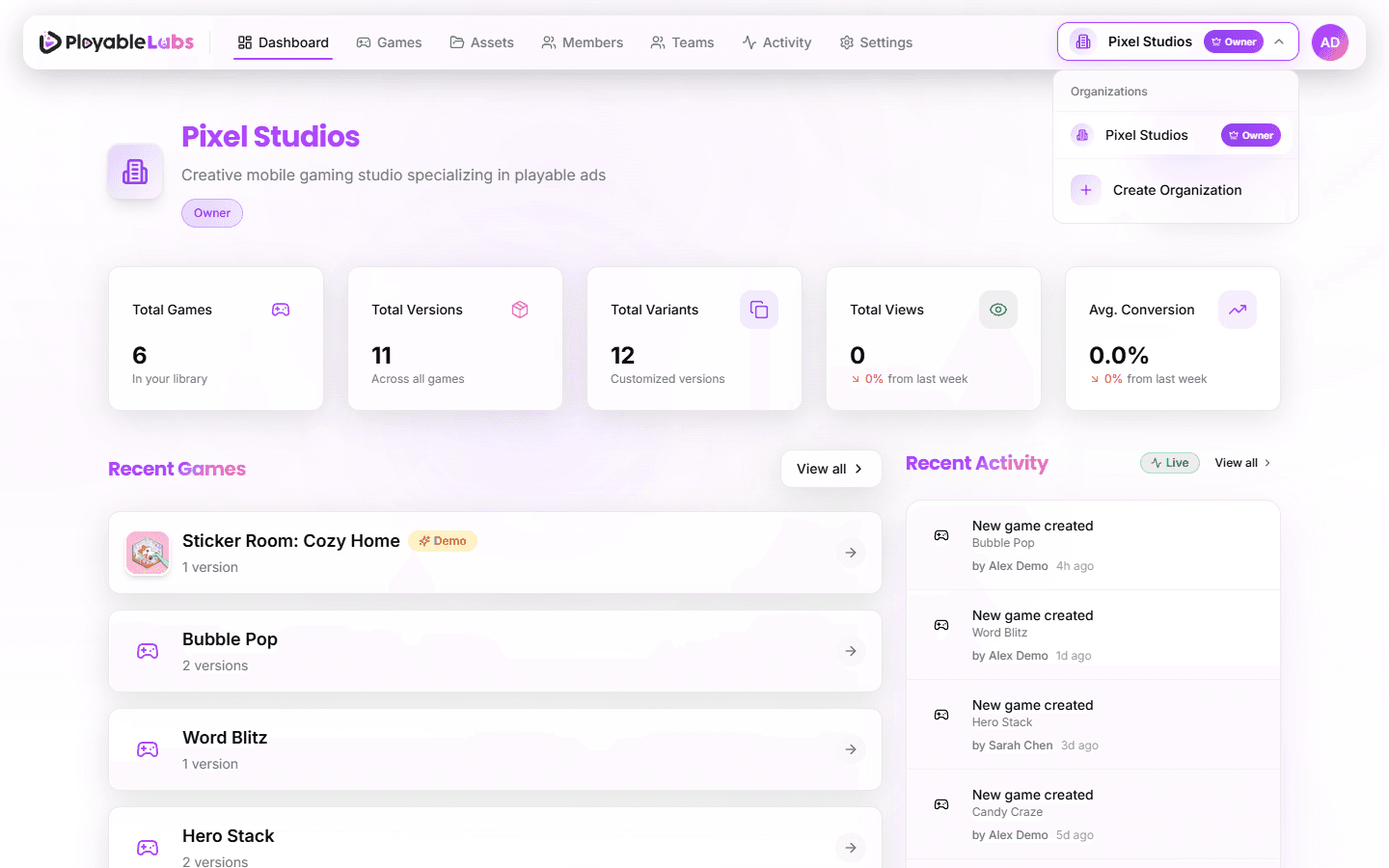
- The organization appears in your organization selector in the header
If you belong to multiple organizations, use the organization selector dropdown to switch between them. After accepting, the new organization appears in this dropdown:
Viewing the Team List
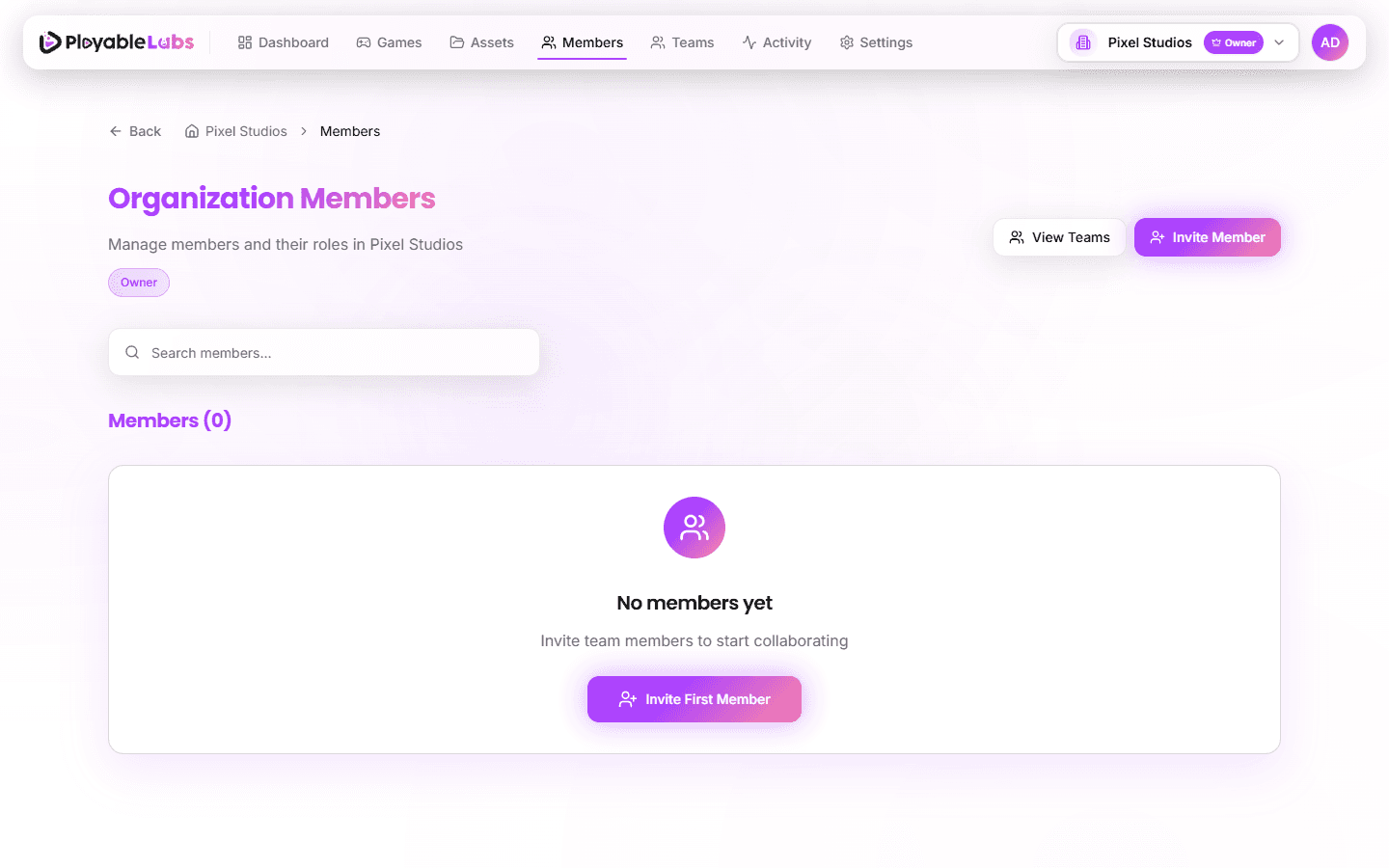
Navigate to the Members page in the sidebar to see all members in your organization:
- Avatar with profile picture or initials
- Name and email of each member
- Join date -- When they joined the organization
- Last active -- Most recent login timestamp (if available)
- Role badge with icon indicating their permission level
Search
Use the search bar at the top to find members by:
- Name (full or partial match)
- Email address (full or partial match)
The member count updates as you type.
Removing Members
Owners and Admins can remove members from the organization:
- Find the member in the team list
- Click the actions menu (three dots) next to their name
- Select Remove Member
- Confirm the removal in the dialog
Removal Rules
- Owners cannot be removed -- ownership must be transferred first
- Admins can remove Members, Viewers, and Managers, but not other Admins
- Owners can remove anyone except themselves
- Removed members lose access immediately but can be re-invited later
Pending Invitations
Manage outstanding invitations from the Pending tab on the team page:
- Resend an invitation if the recipient didn't receive the email
- Revoke an invitation to cancel it before acceptance
- See the expiration date for each pending invite
Activity Tracking
Every team member action generates an activity log entry:
| Action | Logged Event |
|---|---|
| Invite sent | MEMBER_INVITED |
| Invite accepted | MEMBER_JOINED |
| Member removed | MEMBER_REMOVED |
| Role changed | MEMBER_ROLE_CHANGED |
View these events in Activity Logs in the sidebar. See Team Management for more on audit trails.
Next Steps
- Roles and Permissions -- Understand what each role can do
- Team Management -- Change roles, review activity, and configure team settings