Version Management
Create and manage versions to track revisions of your playable ad games
What Are Versions?
A Version is a snapshot of your game at a specific point in time. Versions let you iterate on your playable ad while keeping a complete revision history. Each version has its own assets, configuration, and export history.
Creating a Version
- Open a game from the Games list
- Go to the Versions tab
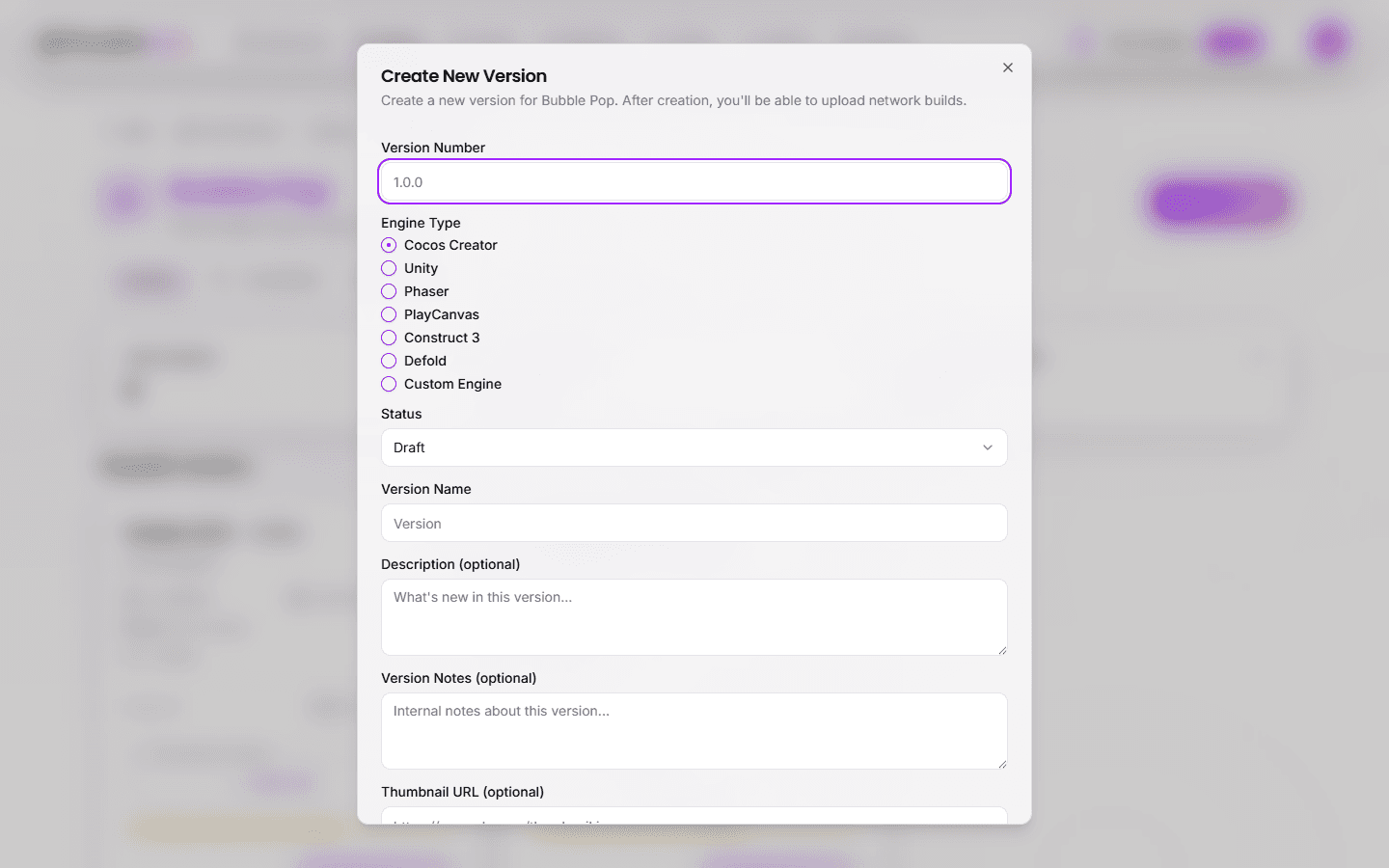
- Click New Version
- Fill in the details:
- Version Number (required) — e.g.,
1.0.0,2.1.0 - Engine Type (required) — Select from:
- Cocos Creator
- Unity
- Phaser
- PlayCanvas
- Construct 3
- Defold
- Custom Engine
- Version Name — Display name (defaults to "Version X.X.X" if left empty)
- Description — Notes about what changed in this version
- Version Notes — Internal notes for your team
- Thumbnail URL — Optional preview image URL
- Version Number (required) — e.g.,
- Click Create New Version
Tip: Use semantic names that indicate the purpose —
v1.0-initial,v1.1-new-cta,v2.0-holiday-theme.
Version List View
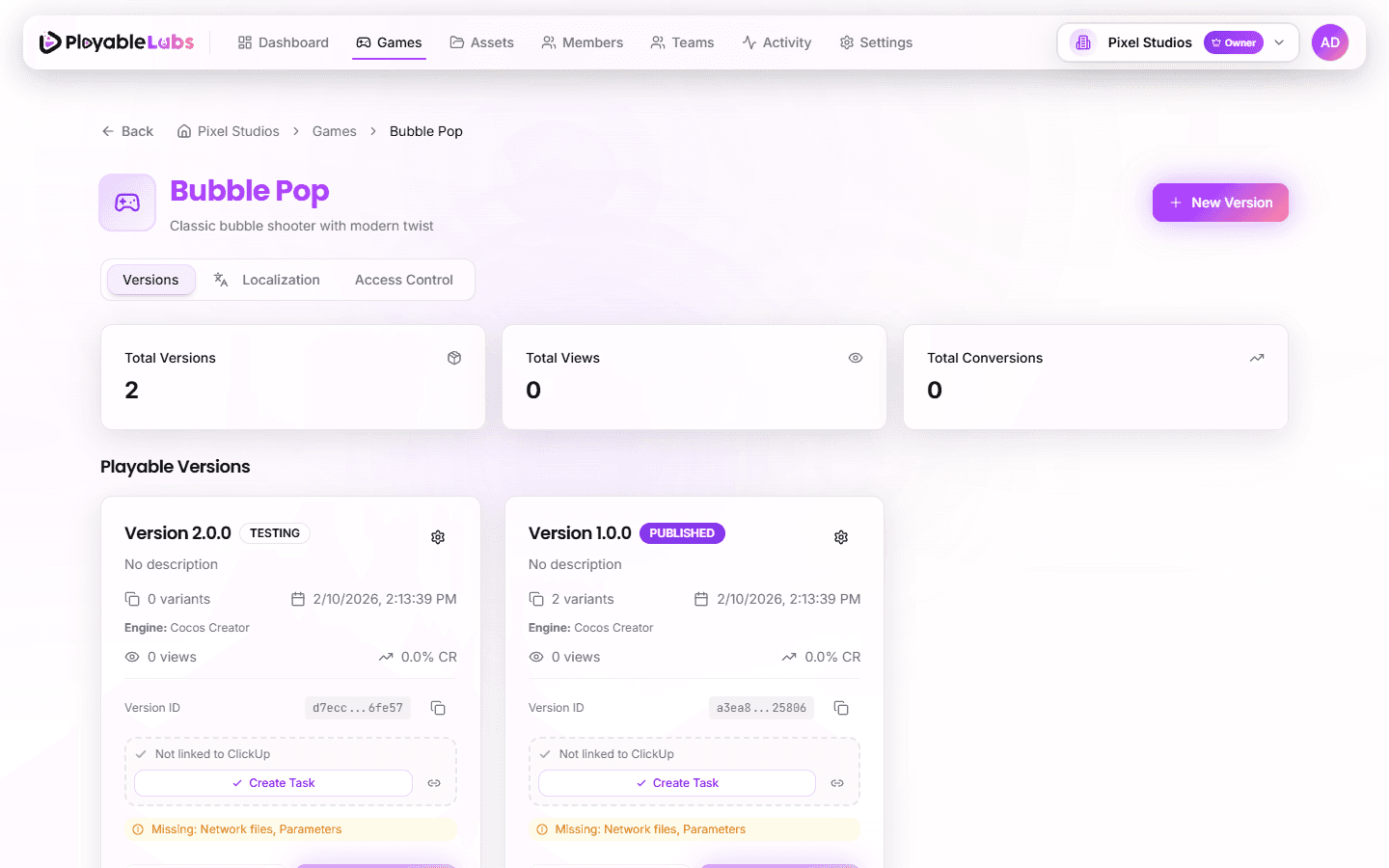
The versions tab shows all versions for a game with:
- Version name and description
- Created date and last modified
- Export status — Which networks have been exported
- Variant count — Number of variants created from this version
Working with a Version
Opening a version gives you access to three main tabs:
Variants Tab
- Create and manage customized variants
- Customize parameters for each variant
- Preview and share variants
- Duplicate variants for testing
Localization Tab
- Configure translations at the version level
- Override parameter values per language
- Applies to all variants unless overridden at variant level
- Supports text, audio, and image localization
Networks Tab
- Upload network-specific builds generated by Super HTML (paste URL or upload ZIP file)
- View currently available networks with status indicators
- Real-time upload progress
- Add additional network builds anytime
Creating a Version from an Existing One
To branch from an existing version:
- From the game detail page Versions tab, find the version to duplicate
- Open the version actions menu (three dots)
- Select Duplicate
- Enter a new version number (e.g.,
1.1.0if duplicating1.0.0) - Click Duplicate Version
The new version inherits all configuration from the source. This is useful when you want to make incremental changes without modifying the original.
Branching Strategy
A recommended approach for managing versions:
| Stage | Version Name | Purpose |
|---|---|---|
| Initial development | v1.0-draft | First iteration |
| Testing | v1.0-rc1 | Ready for review |
| Production | v1.0 | Approved and exported |
| Iteration | v1.1-new-cta | Incremental improvement |
| Seasonal | v2.0-holiday | Major theme change |
Best Practices
- Keep production versions clean — Do not modify a version after exporting it for production
- Duplicate before editing — Create a new version for changes rather than editing an exported one
- Use descriptive names — Include the purpose or change in the version name
- Archive old versions — Hide versions that are no longer active
Deleting a Version
Warning: Deleting a version permanently removes all its variants, exports, and stored files from cloud storage. This cannot be undone.
- Open the version menu (three dots)
- Select Delete
- Confirm the deletion
Next Steps
- Create variants from a version for network-specific builds
- Export your playable ad to target ad networks