Account
User Profile
Manage your personal profile information and security settings
Overview
Your user profile contains personal information and security settings. Access it by clicking your avatar or name in the header navigation and selecting Profile.
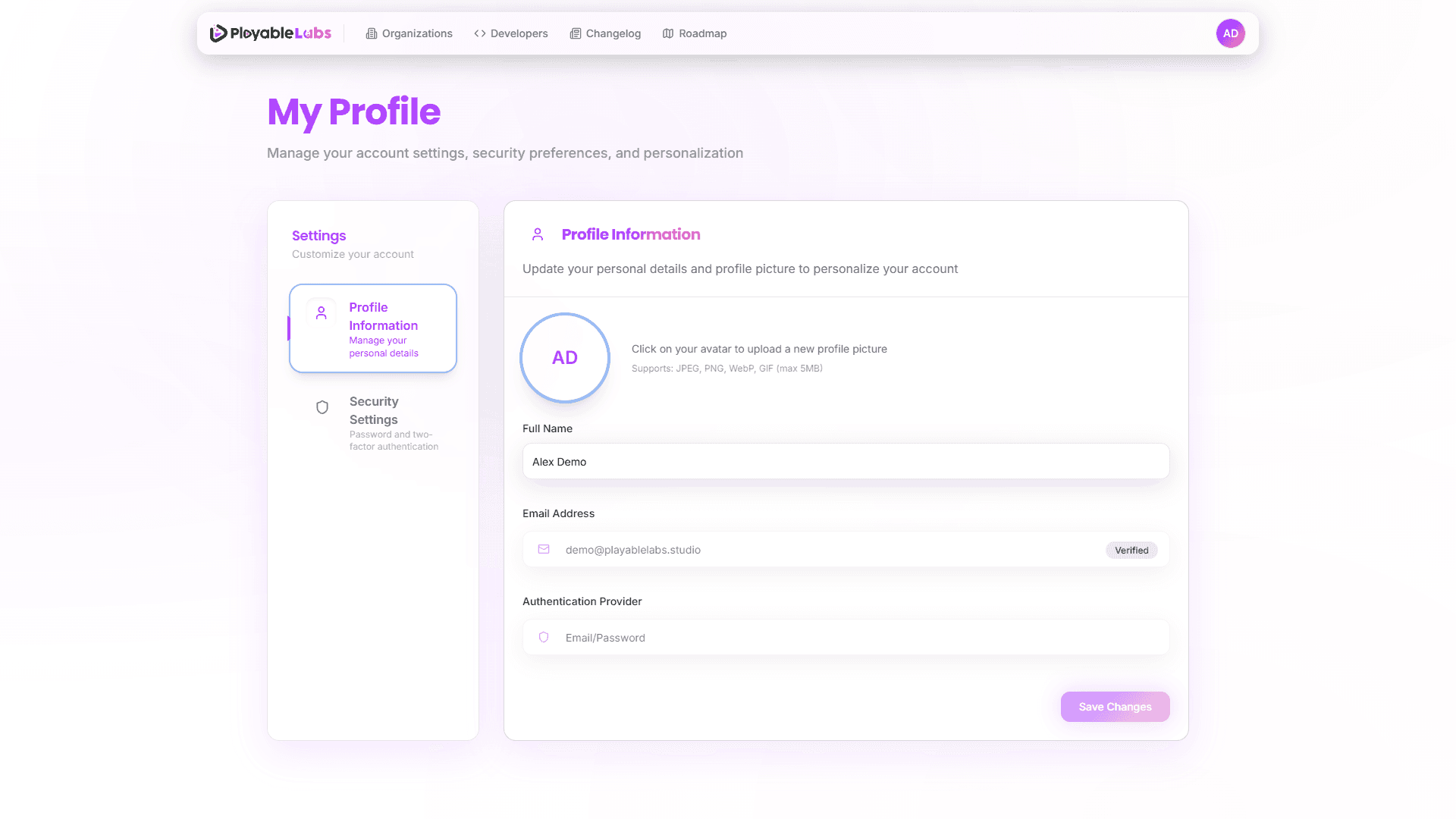
Profile Information
The Profile section lets you manage your personal details:
- Name — Your display name shown across the platform
- Email — Your login email address
- Avatar — Upload a profile picture (click the avatar area to upload)
Click Save after making changes, or Cancel to discard.
Security Settings
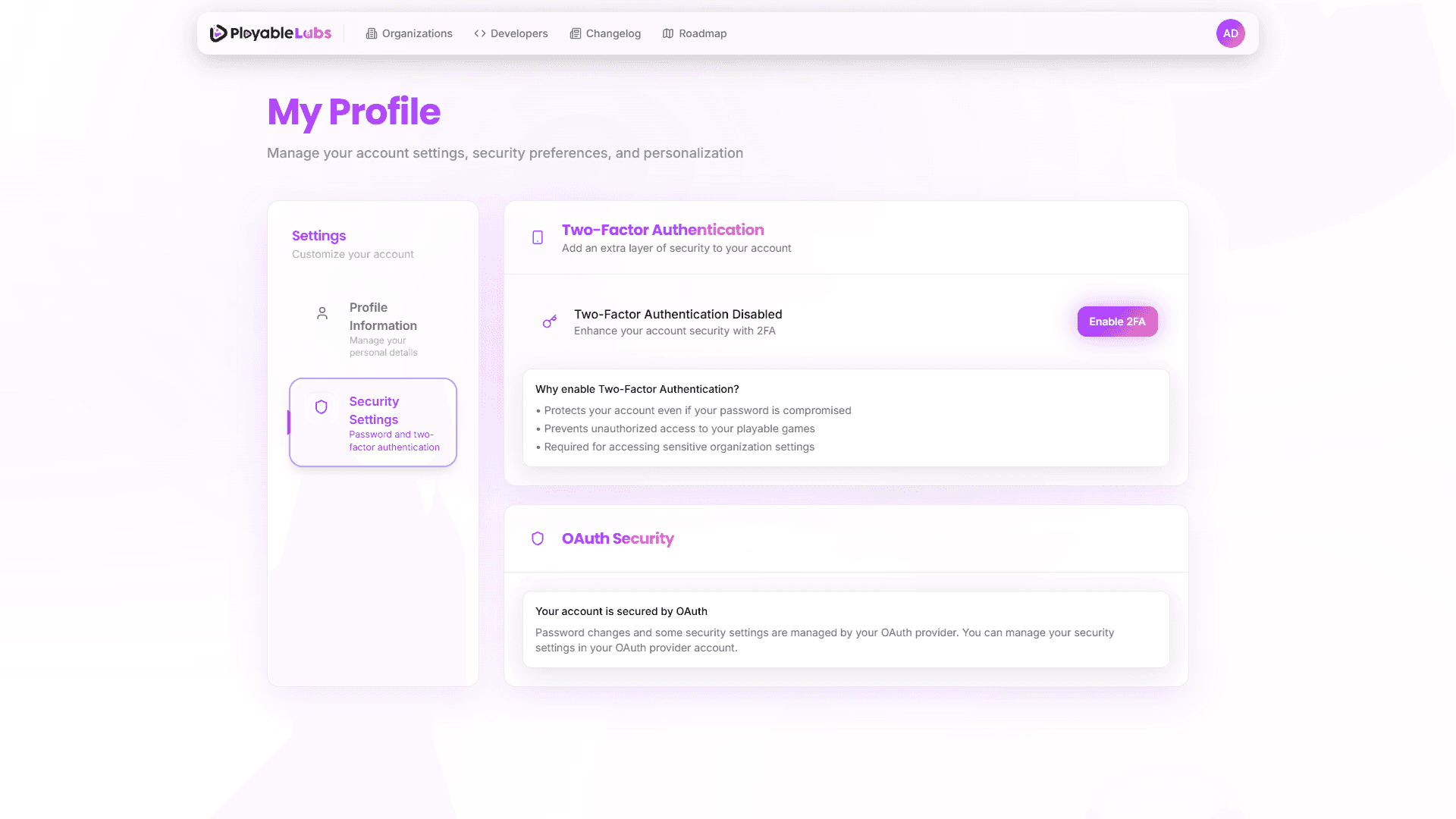
The Security section provides account protection options:
Password
Change your account password:
- Enter your current password
- Enter your new password
- Confirm the new password
- Click Update Password
Multi-Factor Authentication (MFA)
MFA adds an extra layer of security to your account using a TOTP authenticator app.
- Status — Shows whether MFA is currently enabled or disabled
- Enable MFA — Follow the setup flow to configure your authenticator
- Disable MFA — Remove MFA protection (requires verification)
For detailed MFA setup instructions, see the Authentication guide.
Next Steps
- Account Settings — Customize appearance and notifications
- Organization Settings — Manage your workspace