Authentication
Sign up, log in, and secure your PlayableLabs account with MFA
Overview
This guide covers the user-facing authentication flows in PlayableLabs — from creating an account to securing it with multi-factor authentication.
For API-level authentication (JWT tokens, API keys), see the Developer Authentication guide.
Creating an Account
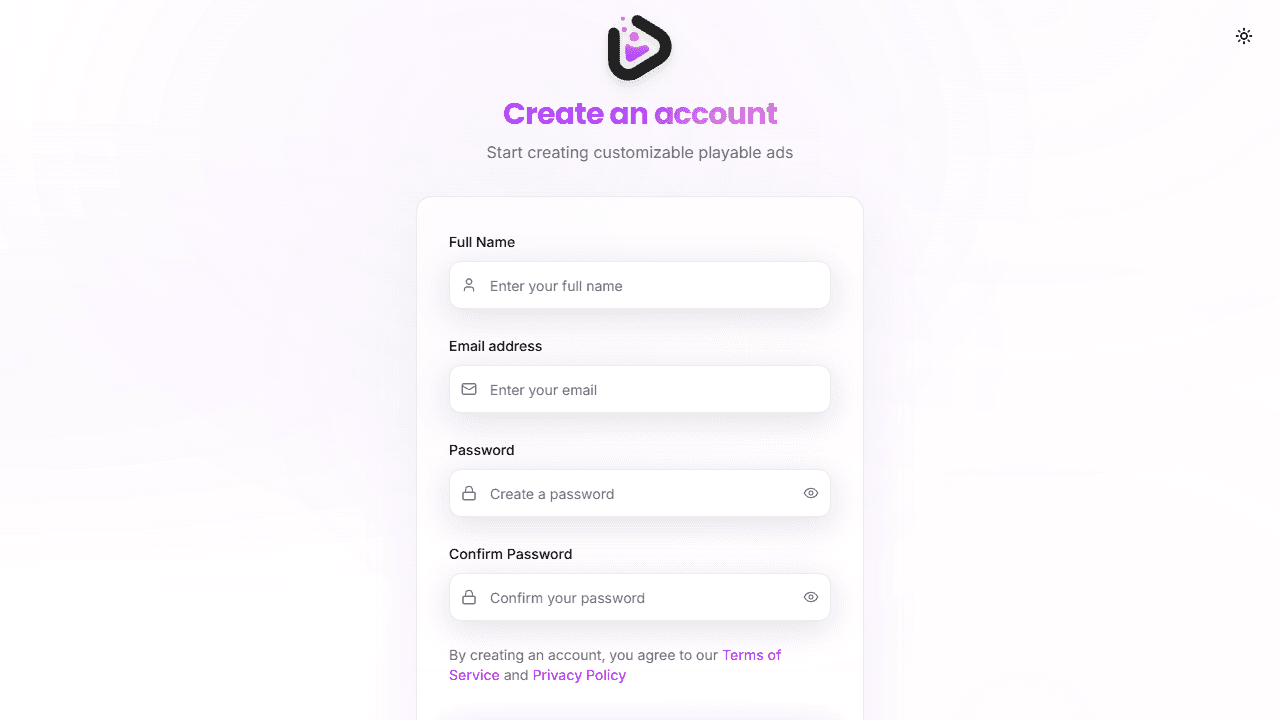
- Navigate to the registration page
- Enter your Name, Email, Password, and Confirm Password
- Accept the Terms of Service and Privacy Policy
- Submit the registration form
- Check your inbox for a verification email
- Click the verification link to activate your account
- A Personal Organization is automatically created for you
Alternatively, click Sign up with Google to register using your Google account.
Logging In
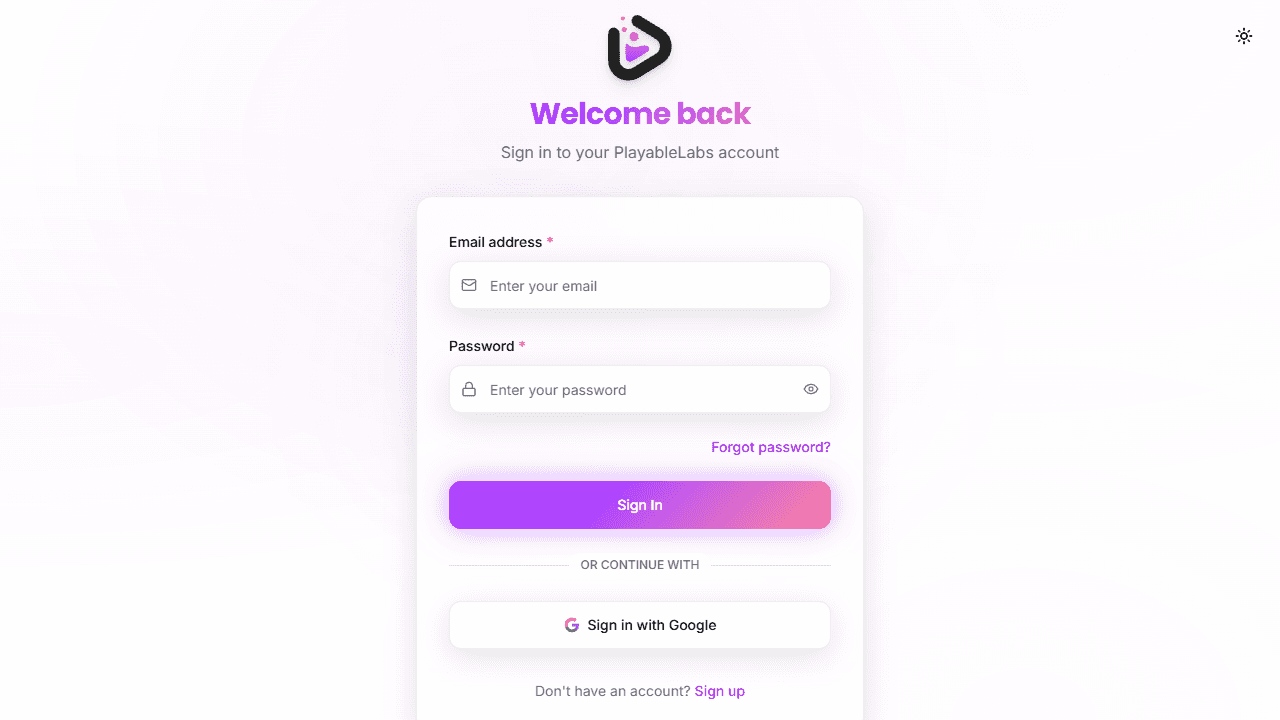
Email and Password
- Navigate to the login page
- Enter your Email and Password
- Click Sign In
- If MFA is enabled, you'll be redirected to the MFA verification page
Google OAuth
You can also sign in using your Google account:
- Click Sign in with Google on the login page
- Select your Google account and authorize access
- You are redirected to your dashboard (or MFA page if MFA is enabled)
Multi-Factor Authentication (MFA)
MFA adds an extra security layer using a Time-based One-Time Password (TOTP) authenticator app.
Setting Up MFA
- Go to Profile > Security Settings
- Click Enable MFA
- Scan the QR code with your authenticator app (Google Authenticator, Authy, 1Password, etc.)
- Enter the 6-digit verification code to confirm setup
- Save the backup codes displayed after setup — store them in a secure location
Backup Codes
After enabling MFA, you receive a set of one-time backup codes. Each code can be used once as an alternative to your TOTP code if you lose access to your authenticator app.
Store your backup codes securely. If you lose both your authenticator and your backup codes, you will be locked out of your account.
Using MFA at Login
After entering your password:
- You are redirected to the MFA verification page
- Open your authenticator app
- Enter the current 6-digit TOTP code (or use a backup code)
- Your session is established upon successful verification
You have 5 minutes to complete MFA verification. After that, the pre-authentication session expires and you'll need to sign in again. The Back button also clears your session for security.
Password Recovery
If you forget your password:
- Click Forgot Password on the login page
- Enter your registered email address
- Check your inbox for a password reset link (valid for 1 hour)
- Click the link and set a new password
Check your spam folder if you don't receive the reset email within a few minutes.
Email Verification
Email verification is required after registration:
- A verification email is sent automatically upon signup
- Click the link in the email to verify your account
- If the email doesn't arrive, check your spam folder or request a new one from the verification page
Security Tips
- Use a strong, unique password for your PlayableLabs account
- Enable MFA for all accounts, especially admin and owner roles
- Save your MFA backup codes in a secure location
- Don't share login credentials with others
- Log out from shared or public devices after use
Next Steps
- User Profile — Manage your profile and security settings
- Developer Authentication — API authentication for developers