Create an Organization
Understand organizations in PlayableLabs and how to get started with your workspace
Why Organizations?
Everything in PlayableLabs is scoped to an organization. An organization is your team's workspace — it contains all your games, assets, team members, and settings. Each organization has its own permissions and data isolation.
You can belong to multiple organizations and switch between them using the organization selector in the header navigation.
Your First Organization
When you sign up for PlayableLabs and verify your email, an organization is automatically created for you. It follows the naming pattern:
- Name:
{Your Name}'s Organization(e.g., "John Smith's Organization") - Slug: Auto-generated from your name (e.g.,
john-smith-a3f8b9c2) - Role: You are assigned as the Owner
Demo games are also cloned into your organization so you can explore the platform right away.
Creating Additional Organizations
You can create new organizations at any time:
- From the Organizations page — Navigate to
/organizationsand click the Create Organization button - From the Organization Switcher — Click the organization name in the header, then select Create Organization at the bottom of the dropdown
Create Organization Dialog
When creating a new organization, you'll be prompted for:
- Organization Name (required) — The display name for your workspace
- Description (optional) — A brief description of the organization's purpose
The slug is auto-generated from the organization name. After creation, you are automatically switched to the new organization as its Owner.
Organizations Page
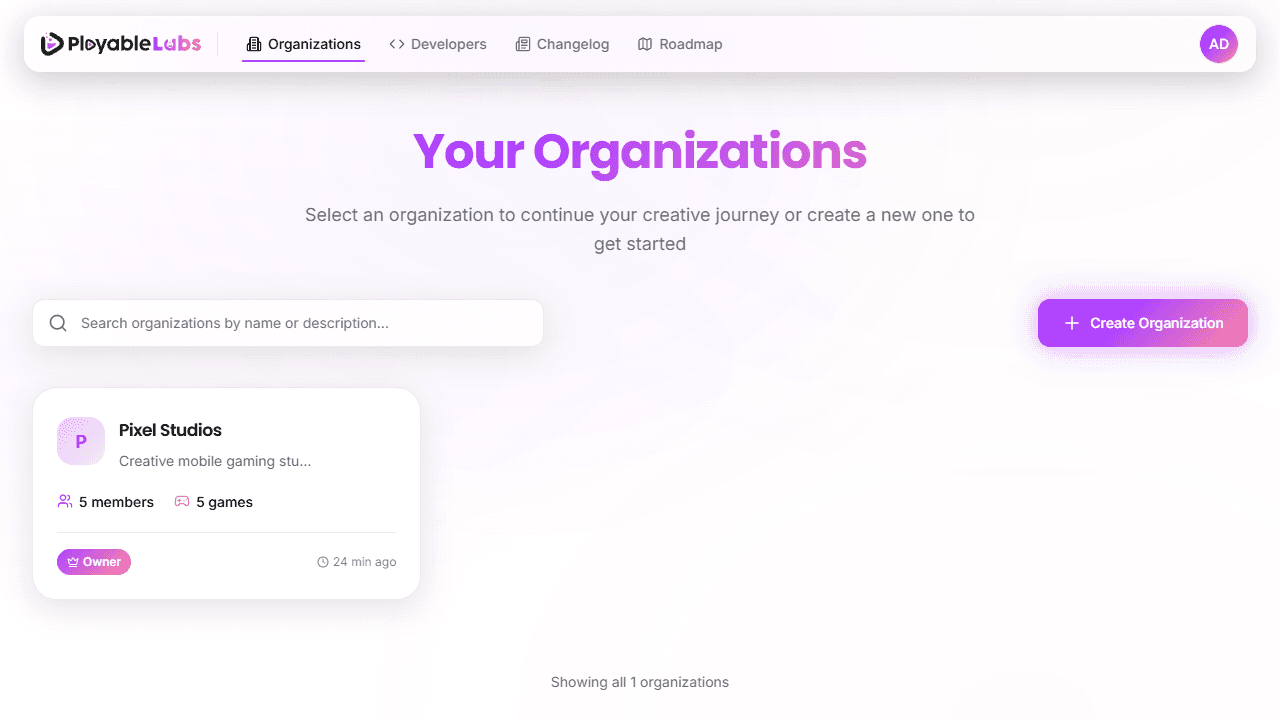
The /organizations page shows all organizations you belong to in a grid layout:
- Organization cards — Each card displays logo, name, description, member/game counts, your role, and last activity
- Search — Filter organizations by name with instant search
- Infinite scroll — Browse large lists without pagination
- Role badges — See your role in each organization at a glance (Owner, Admin, Manager, Member, Viewer)
Organization Settings
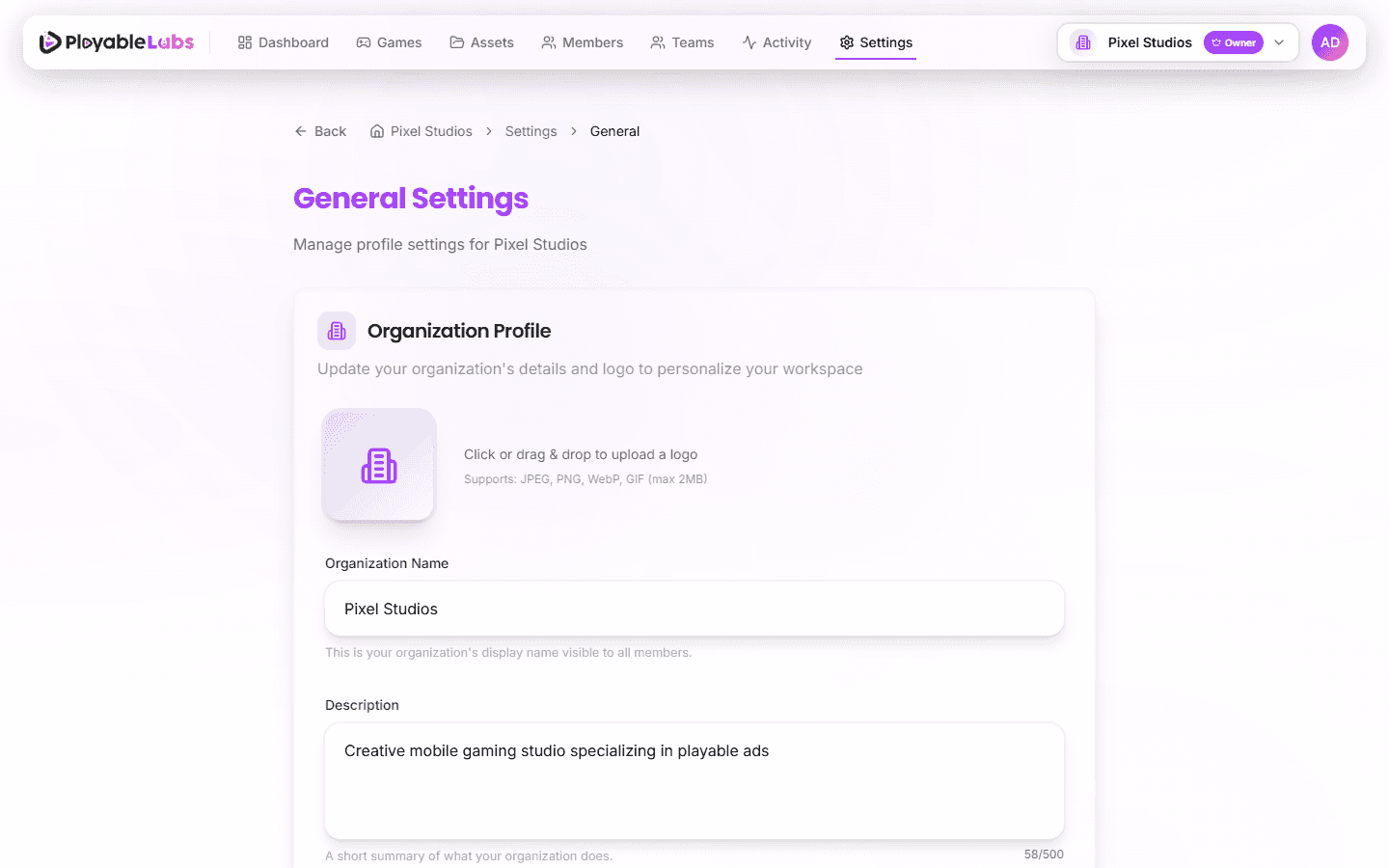
You can configure your organization from Settings > General in the navigation:
- Name — Update your organization's display name
- Description — Add or update a description for your workspace
- Logo — Upload a brand logo (PNG, JPG, WebP, or GIF, max 2MB)
The organization slug is auto-generated and cannot be changed from the UI. It serves as your unique URL identifier.
Next Steps
Your organization is set up. Now let's create your first game.