Getting Started
Dashboard
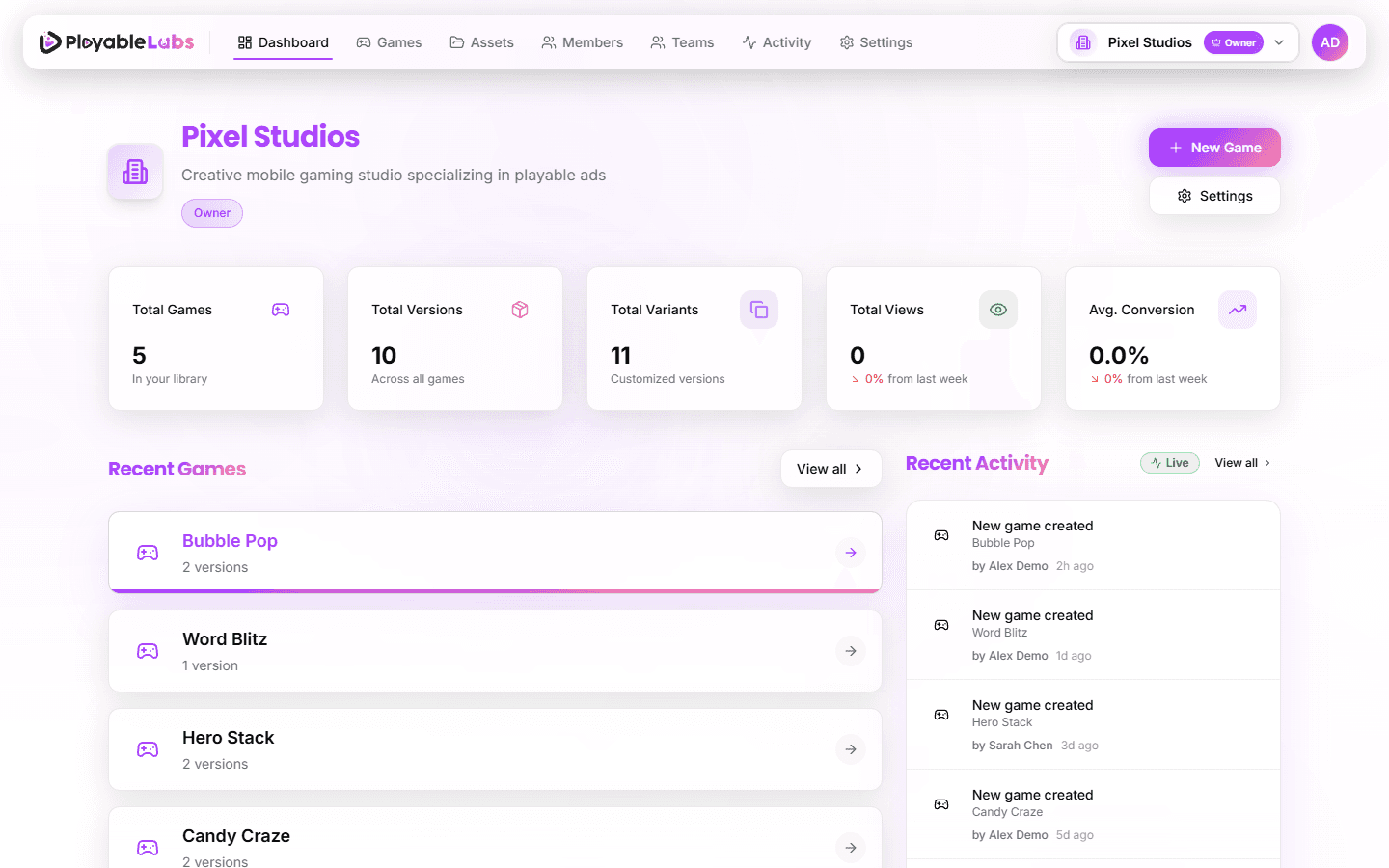
Overview of your organization dashboard with stats, recent activity, and quick actions
Overview
The Dashboard is the first page you see after selecting an organization. It provides a quick overview of your organization's activity, stats, and shortcuts to common tasks.
Stats Cards
The top of the dashboard displays key metrics:
| Stat | Description | Visibility |
|---|---|---|
| Total Games | Number of games in your organization | All members |
| Total Versions | Total game versions across all games | All members |
| Total Variants | Total variants across all versions | All members |
| Total Views | Aggregate playable ad views | Manager/Admin/Owner |
| Avg. Conversion Rate | Average conversion across playables | Manager/Admin/Owner |
Recent Games
Below the stats, the dashboard shows your 5 most recently updated games:
- Game name with thumbnail
- Version count and last updated timestamp
- Click any game card to navigate to its detail page
Recent Activity
A real-time activity feed shows the latest actions in your organization (up to 8 entries):
- GAME_CREATED — A new game was created
- VERSION_CREATED — A new version was added
- VARIANT_CREATED — A new variant was created
- MEMBER_JOINED — A new member joined the organization
- MEMBER_INVITED — An invitation was sent
Timestamps are displayed in relative format (e.g., "2 hours ago").
Quick Actions
Four action cards provide shortcuts to common tasks. Visibility depends on your role:
| Action | Description | Required Role |
|---|---|---|
| Create New Game | Start a new game project | Owner/Admin/Manager/Member |
| Invite Members | Send team invitations | Owner/Admin/Manager/Member |
| Manage Teams | Organize team groups | Owner/Admin/Manager/Member |
| View Analytics | Access analytics dashboard | Owner/Admin/Manager/Member |
Note: The entire Quick Actions section is hidden for Viewers.
Next Steps
- Create your first game — Start building playable ads
- Invite your team — Add team members to your organization
- Organization Settings — Configure your workspace